
How to Make a Burning Bridges AI Video on Genjutsu AI (Template + Photos)
Make a Burning Bridges AI party video on Genjutsu AI: upload the handheld template, add authorized photos for the lead and background cast, run Motion Transfer, and download a social-ready MP4.
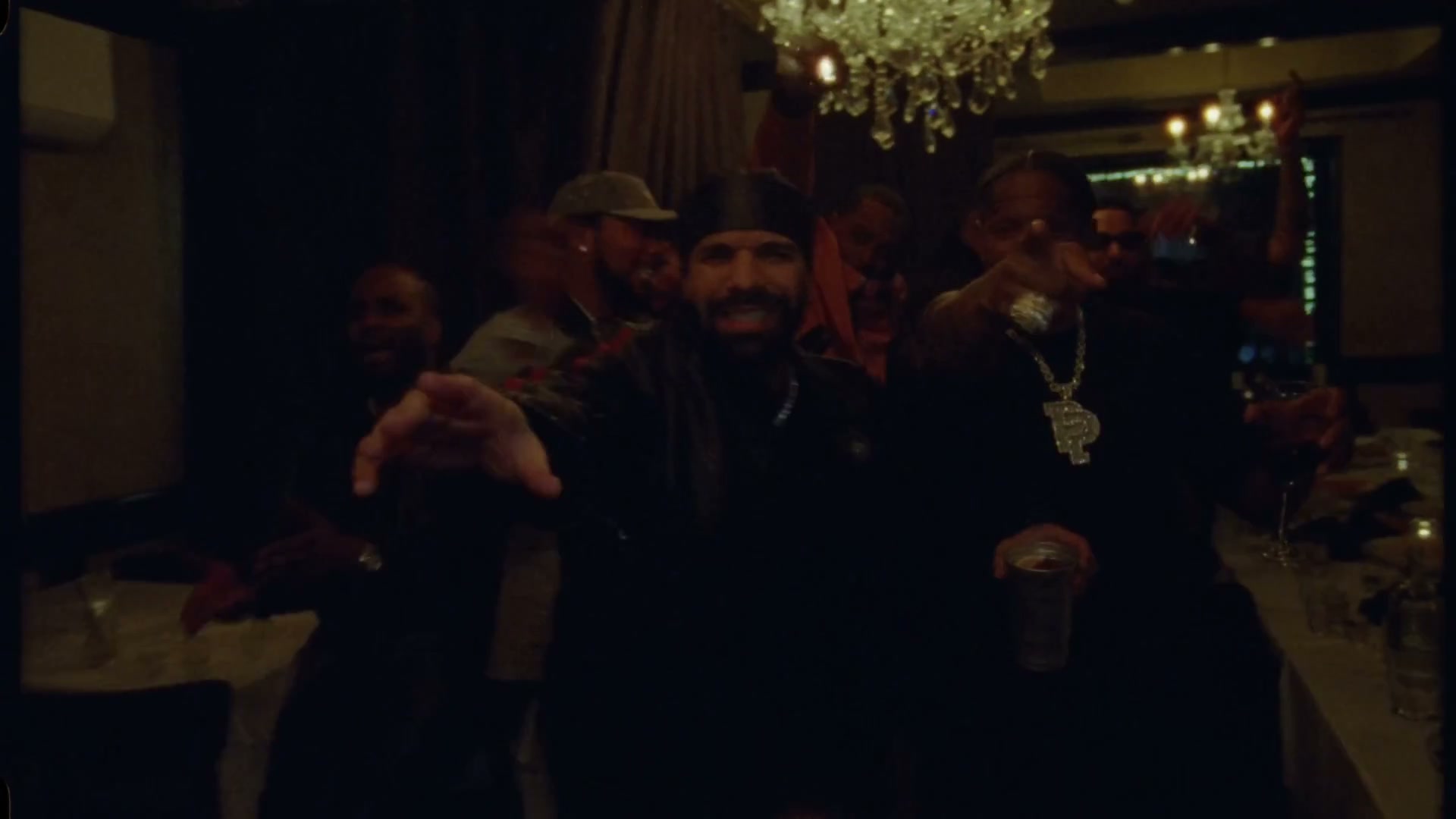
The Burning Bridges AI trend restages a warm, crowded party room as one continuous handheld shot — same chandelier, same timing, same metal cup — then recasts the central performer (and often the people behind them) with your authorized photos. Creators post the result to TikTok and Reels. You do not need CapCut timelines or a film set.
This guide is the homepage Motion Transfer walkthrough: upload the party template yourself, add multiple reference photos, and paste a detailed prompt. Genjutsu AI is an independent tool and is not affiliated with, endorsed by, or sponsored by Drake, OVO, or the rights holders of the “Burning Bridges” music video.
Template motion reference: keep the handheld path, chandelier light, crowded room, and cup interactions while you swap the cast.
What the Burning Bridges AI trend is
The source feel is a photorealistic, low-light party: a handheld camera moves through a packed room under a chandelier while the lead performer holds a metal cup, gestures, and interacts with people nearby. AI edits keep that camera path and room energy, then replace the lead — and optionally background models — with likenesses you have permission to use. Outfit-grid versions dress the lead in a fixed modern look while the rest of the crowd stays in urban everyday clothes.
Typical output format for social:
- About 29 seconds (this template is ~29 seconds)
- 16:9 landscape in the source clip; crop or reframe in TikTok if you need 9:16
- MP4, ready for TikTok / Reels / Shorts (mute the file and attach the trending sound in-app when needed)
Before you upload: authorization comes first
Only use a real-person photo when that person has authorized this use.
- Prefer photos of yourself, or people who explicitly allowed you to generate and publish the video.
- Every person in every photo must be 18+.
- Do not upload celebrities, public figures, or anyone who did not consent.
- Do not use the result to impersonate someone or spread misleading content.
- For multi-photo casts: each background face needs the same permission as the lead.
Genjutsu AI expects you to confirm rights over every likeness you upload. If you cannot show permission, pick another reference — pets and illustrated characters are common alternatives when a person photo is not appropriate.
What you need
- Burning Bridges template video — the party-room handheld clip (or a licensed copy you may edit).
- Lead photo — clear shot of the person who replaces the central performer (face + build readable; the example workflow uses a man in a viking shirt and tan hat as the identity reference).
- Background photos (optional but recommended) — one distinct person per background role; do not reuse the same face twice.
- Outfit reference (optional) — a grid or stills for the lead wardrobe if you want a fixed fashion look.
- Mode — Motion Transfer (best when you keep the full camera path and restage multiple people).
- Account credits — generation is prepaid; check the estimated credits on the homepage before you submit.
Photo tips that improve the render:
- Lead: eyes visible, upper body in frame, sharp light, one subject
- Background: each file shows a different person — no duplicates
- JPG / PNG / WebP; avoid heavy filters and sunglasses on faces you need to keep
How to make the video on Genjutsu AI
1. Open the homepage generator
Go to genjutsuai.net and use the main composer on the homepage — no separate app.
2. Upload the party clip as your video template
Add the Burning Bridges MP4 as the reference video. This file supplies motion, camera path, duration, chandelier framing, and crowd blocking. Keep the full gesture and cup-interaction sequence when you can.
3. Choose Motion Transfer
Select Motion Transfer when your goal is to preserve the continuous handheld shot — timing, gestures, interactions, lighting — while replacing the lead and (if you want) background people from your photos.
Use Objects Swap only if you are replacing a single obvious subject and want a lighter edit. For this trend’s full cast + outfit lock, Motion Transfer is the better default.
4. Add authorized reference photos
Upload in a clear order so the prompt can map them:
- @Image1 — lead identity (e.g. the man with the viking shirt and tan hat)
- @Image2+ — background people, one unique person per image
- Optional outfit grid as an extra image if you are locking wardrobe from a still
Confirm again that every real person authorized this use.
5. Paste a detailed prompt
Tell the model what to keep and what to change. Example prompt for a full outfit-grid + multi-person cast:
Recreate the source video as one continuous, photorealistic handheld shot. Replace the central performer throughout with the man with the viking shirt and tan hat on. Preserve his actual facial features, build, and skin tone. Dress him in the supplied outfit grid: taupe Jacquemus beanie, cream Jacquemus knit, beige Stone Island vest, cream jeans with cross details, beige Louis Vuitton trainers, and rose-gold Rolex watch with black strap. Dress the rest in urban modern day clothing. Preserve the original camera path, timing, gestures, interactions, metal cup, warm low light, chandelier, and crowded room. Keep his identity and outfit consistent from beginning to end. No cuts, extra limbs, face changes, or warped clothing.
Use the other photos that are shared and use those to replace the models in the back. dont duplicate. keep everyone individual
On the homepage, name your assets explicitly when you can (for example @Video1, @Image1 for the lead, @Image2 / @Image3 for background people). Keep the “don’t duplicate / keep everyone individual” line — it reduces repeated faces in the crowd.
6. Pick resolution and generate
Choose 480p, 720p, or 1080p, review the credit estimate, then generate. Jobs usually take several minutes; you can leave the tab and download from your library when the task finishes.
7. Download and post
Download the MP4. For TikTok or Reels, many creators upload a silent cut and attach the trending party sound inside the app. Keep the platform’s AI-content label on when required.
Prompt and quality tips
Do
- Lock motion language: “one continuous handheld shot,” “same camera path,” “same timing”
- Map roles: lead = first photo; each background person = a separate photo
- Spell out the outfit list if you need a fashion-grid look
- Say “don’t duplicate” and “keep everyone individual” when using multiple faces
Expect some AI limits
- Crowd faces at the edge of frame are softer than the lead
- Watch straps, logos, and knit texture can simplify under low light
- Fast handheld motion is close, not frame-perfect
If a job fails or faces merge, retry with fewer background photos, sharper front-facing lead, and a shorter prompt that still names @Video1 / @Image1. Check the on-screen credit estimate before each attempt.
Burning Bridges AI FAQ
Can I make a Burning Bridges AI video with one photo only?
Yes. Upload the party video template, add one authorized lead photo, choose Motion Transfer, and shorten the prompt to replace only the central performer. Skip the background-replacement lines if you want the original crowd to stay.
Why use multiple photos?
Multi-photo Motion Transfer lets you cast distinct people into the background without cloning the lead’s face. Use one photo per person and keep the “don’t duplicate” instruction.
Do I need everyone’s permission?
Yes. Real-person photos must be yourself or people who authorized this use, and everyone must be 18+. Celebrities and public figures are not allowed.
Is Genjutsu AI the official Burning Bridges meme app?
No. Genjutsu AI is independent and not affiliated with Drake, OVO, or the music video’s rights holders.
How long does generation take?
Often a few minutes, depending on queue, resolution, and how many reference photos you attach. Finished clips stay available to download from your account.
What resolution should I pick?
Start at 480p to validate likeness, outfit, and crowd casting, then rerun at 720p or 1080p when you like the framing.
Your turn in the party room
One handheld template. Authorized photos for the lead and cast. Motion Transfer — no timeline editing.